How To Remove Antivirus Live From Your PC
Antivirus Live is a relatively new tool which installs itself on your PC and then proceeds to perform a fake antivirus scan. This scan actually doesn’t find any real problems and just shows up a lot of fake errors in order to get you to purchase the software. If you’ve seen through it’s false errors, then you’ll need to then make sure you get rid of this virus quickly and completely.
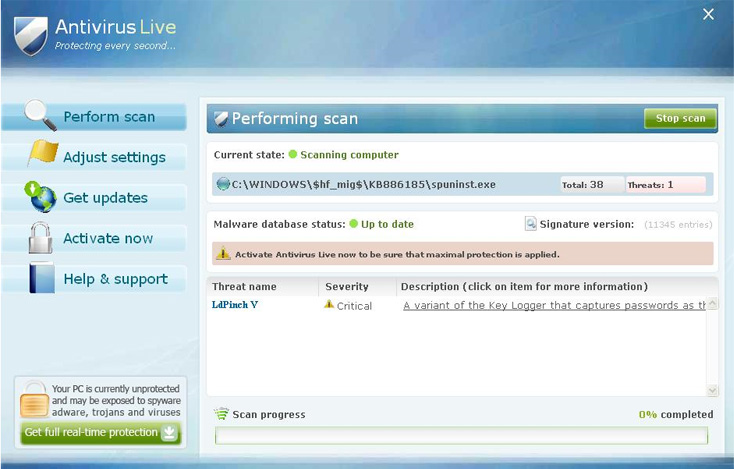
Removing Antivirus Live can be quite tough, considering that the software has cleverly been designed to be extremely difficult to uninstall. Fortunately, there’s a very easy way to remove Antivirus Live from your PC:
STEP 1 – Stop Antivirus Live From Running
- [random]sysguard.exe
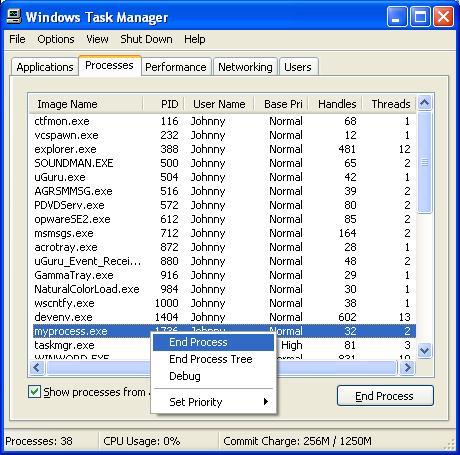
You need to open up the Task Manager by pressing CTRL + ALT + DEL and then click on the “processes” tab. This will then show you all the running programs on your PC. Select the one called “[random]sysguard.exe” and then click “End Process”. This will stop the program from operating on your system. Here’s what it should look like:
STEP 2 – Delete The Anvitivirus Live Directory
- %UserProfile%\Local Settings\Application Data\[RANDOM CHARACTERS]\
You need to open up “My Computer” and browse to the above directories. When you find them, select the directory you want to delete and then press shift + delete to remove it permanently from your computer. Using the Shift+Delete command actually makes the deleted directory bypass the recycle bin, removing them from your PC for good. This will prevent the program from coming back as its program files will be gone forever..
STEP 3 – Clean The Registry
After you’ve downloaded and installed that registry cleaner, let it scan your system and remove all the errors that it finds. this will clean out any of the settings and other options that Antivirus Live might have left on your PC, which if left unchecked, could have made your computer unable to run properly.
 Is your computer running out of disk space? Scan it for duplicate files right now and free up gigabytes in three simple clicks.